.png)


 Chat with us now!
 Send Email!
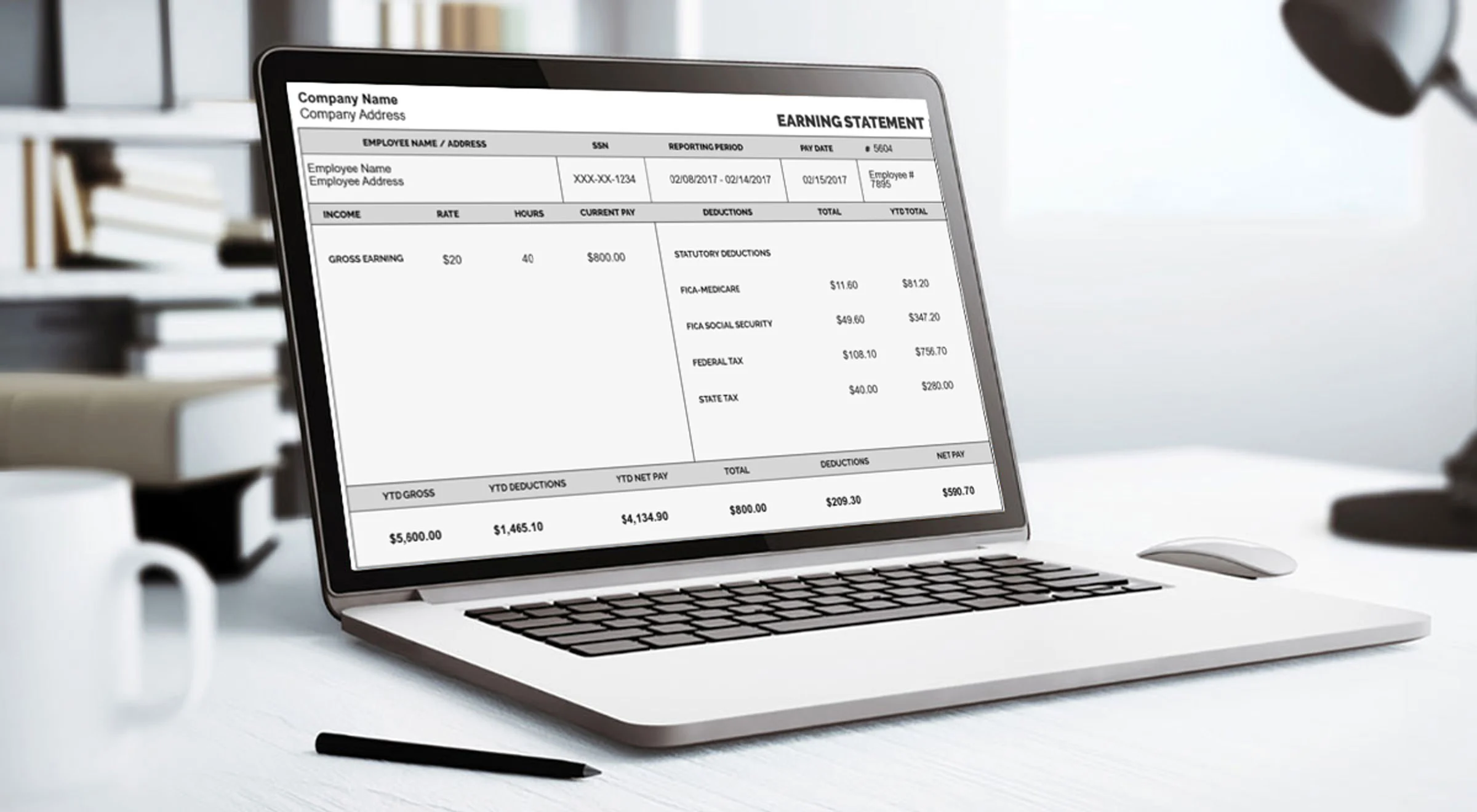
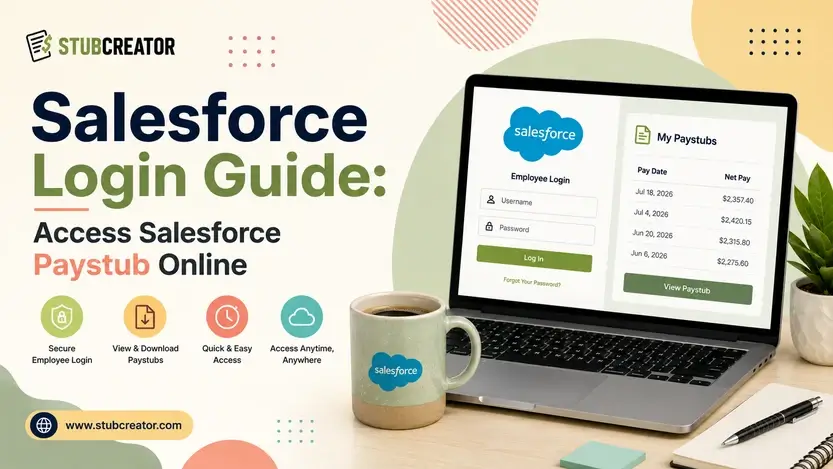
Salesforce Login is the secure gateway that allows employees, administrators, and authorized users to access their Salesforce accounts. Once logged in, users can manage customer relationships, track sales opportunities, automate business processes, view reports, and collaborate with their teams all from a single cloud-based platform. If accuracy and professionalism matter to your business, selecting a reliable pay stub generator should be a top priority.
Whether you’re signing in to check customer data, update records, or download important documents like Salesforce pay stubs, knowing how to access your Salesforce account is essential. In this guide, you’ll learn what Salesforce login is, how to sign in, troubleshoot common login issues, and access your account quickly and securely.
What Is Salesforce?
The majority of people associate Salesforce with customer relationship management (CRM) software. While that connection is correct, Salesforce is the top CRM platform globally. The company has broadened its scope by adding robust employee experience solutions, HR self-service portals, and comprehensive payroll integrations that allow staff to access, download, and handle their pay stubs conveniently via a Salesforce login.
If you happen to be working in a company that uses Salesforce as its HR or workforce management tool, there is a high probability that you will be able to get your employee pay stub with the Salesforce Employee Service portal or a third-party employee portal
Actually, this guide discloses in detail the steps and login results to be expected and also assists in solving the employee issues that most often occur when they are trying to locate their pay slip information.
The first step is to understand how Salesforce and payroll are related to each other. Traditionally, Salesforce is not seen as a payroll system since it doesn’t do tax calculations, arrange direct deposits, or print W-2 forms independently. On the contrary, it acts as a tool for integration and a focal point where one can find data from payroll systems like ADP, Workday, SAP SuccessFactors, and Paychex, and employees can have a single branded, convenient self-service portal using their Salesforce login.
3 Ways to Get Salesforce Paystub
Before going through the detailed steps, note that your actual Salesforce login procedure may vary based on the way your employer has set up their Salesforce platform.
Paystub access via Salesforce is not an automatic feature for all companies. If you are not quite sure, always double-check with your Human Resources department whether the feature has been enabled by the organization.
There are several entry points employees encounter:
- login.salesforce.com: This is the standard Salesforce customer login page. If your employer has given you a Salesforce org username and password, this is where you sign in directly.
- www.salesforce.com: This is Salesforce’s main marketing and product site. You can navigate to the login from here, but employees are usually directed to a specific subdomain or custom URL set up by their employer.
- Custom Experience Cloud Portal URL: In case your company has set up a separate employee portal using Salesforce Experience Cloud, you will be given a unique URL that will act as your employee center, regardless of whether or not it resembles a standard Salesforce page. In fact, the Salesforce branding might be totally concealed by your company’s branding.
Also Read: Marcus Goldman Sachs Login Guide
Step-by-Step: Getting Paystubs Through the Salesforce Employee Portal
Here are some important steps to get Salesforce paystubs:
1. Get Your Login Credentials from HR
Your Salesforce employee portal login credentials are issued by your employer, not by Salesforce directly. If you haven’t received them, contact your HR department or IT helpdesk and request:
- Your employee portal URL
- Your username
- Instructions for setting your initial password
Open your browser and go to the URL provided by your employer. This may be:
- A custom-branded URL
- A Salesforce My Domain URL
- The standard Salesforce login page at login.salesforce.com
3. Insert Your Login Credentials and Log In
On the Salesforce login page, enter:
- Username: Your work email address or the username assigned by your employer
- Password: The password you set during onboarding or that was provided to you
4. Locate the Employee Hub Section
Once logged in, you’ll land on your employer’s Salesforce-powered employee homepage. Look for:
- An HR Self-Service section or tile
- A Pay & Benefits section
- A Payroll or Compensation menu item
- A My Paystubs tile or Pay Statements link
Click on the applicable tile, menu item, or hyperlink to gain access to your payroll. In a well-configured Salesforce employee portal with payroll integration, you can typically land on a page that indicates:
- A list of pay periods
- Pay dates and pay period start/end dates
- Net pay amounts for quick reference
- A download link or button for each paystub
6. Download your Paystub
Simply click the view or download button beside the pay period you require. Your Salesforce employee paystub will be displayed as a PDF either in a new tab or it will prompt a download to your device. At that point, you have the option to save, print, or share it as you wish.
Does Salesforce Have a Native Payroll Module?
Salesforce functionality is delivered via one of the three mechanisms:
1. Salesforce Employee Service
The native Salesforce Employee Service product is the most customizable: HR teams can design their own self-service portal by selecting tiles and modules to appear. Leave balances, HR case submissions, onboarding, and profile management are native features; paystub display is not and must be integrated with a third-party payroll provider. Your company’s Salesforce administrator will link up the payroll provider with the portal.
2. AppExchange Payroll Application
Salesforce AppExchange is the platform’s marketplace for third-party applications. It hosts numerous full HR and payroll solutions that are developed natively on Salesforce Lightning. For example, xcd HR & Payroll presents itself as the only completely single-solution HR and payroll software available on the Salesforce platform, and they offer full HRMS suites with paystub management, all of which are done within Salesforce without the need to leave the platform.
3. Third-Party Integrations via API
One of the most popular methods used by large companies is linking their current payroll software with Salesforce via API integrations. With the right settings, payroll information is transferred from the payroll system to Salesforce, so that staff can easily check their pay details within the Salesforce portal following each payroll period.
Conclusion
Salesforce login is the gateway that connects employees to the details they need from their company regarding HR and payroll info, but it is also not a payroll processor in itself. Instead of being a point-of-contact for the sources, it acts as an integration hub that collects data from systems such as ADP or any other example like Workday, SAP SuccessFactors, Paychex, etc., into one branded self-service portal.
How you receive your paystub via Salesforce is completely up to how your employer has configured the platform, either by Salesforce Employee Service, an app from out in the AppExchange payroll apps, like xcd HR & Payroll, or a custom API integration with any existing payroll provider. Because setups are so different, the best first step is always to consult your HR or IT department to verify that paystub access is enabled with the correct login URL and credentials. If not, you can use the good paystub template to create your own!
People May Ask
1) How to download login history in Salesforce?
Select Show all Salesforce objects and select Login History. Browse to the folder where you want to save your download, then click Next. Select the desired fields. Click Finish.
2) Does Salesforce have an HRIS?
No, Salesforce is not a standalone Human Resources Information System (HRIS). It is primarily a cloud-based Customer Relationship Management (CRM) platform.
3) What is login history in Salesforce?
Salesforce Login History is an audit trail that tracks all hits and failed login attempts in your agency. It presents directors with the exact use of logging when, where, and the manner in which customers gain access to the device, which includes access from integrations and outside portals.
4) Does the Salesforce app track logins?
Login history entries can show when an app has connected within the last six months. End users can see their login history, and system administrators can see all user history.
5) How to check log in Salesforce?
To check logs in Salesforce, you can use either the Salesforce Setup menu (best for managing logs across different users) or the Developer Console.
6) What is Salesforce HR?
Salesforce is the #1 AI CRM, with AI agents, data, and CRM apps on a single, unified platform.
7) Can Salesforce be used for payroll?
Salesforce payroll software is just one of the many solutions that will relieve the burden with Sunrise HCM. You can manage HR, initiatives, time & cost, and billing all within a seamless, integrated dashboard. No additional licensing or fees, ever.
8) How much does a L7 make at Salesforce?
Level 7 (L7) employees at Salesforce typically earn total compensation of $175,000 to $355,000+, corresponding to 12 months within the United States, depending heavily on their exact job characteristics. L7 represents a senior, high-level individual contributor or manager job (including lead engineer, product manager, or account executive).
9) Does Salesforce track employee activity?
Salesforce does not track personal browsing, keystrokes, or mouse movements. However, as an enterprise CRM, it tracks all work-related platform activity.
10) Where are Salesforce logs stored?
Use the Logs tab within the Developer Console to gain access rights to logs that include database occasions, Apex processing, workflow, callouts, and validation logic. The Developer Console robotically polls the modern person’s debug logs and lists them in the Logs tab.
Also Read: Types of Compensation: Direct, Indirect & Monetary Pay Explained