.png)


 Chat with us now!
 Send Email!
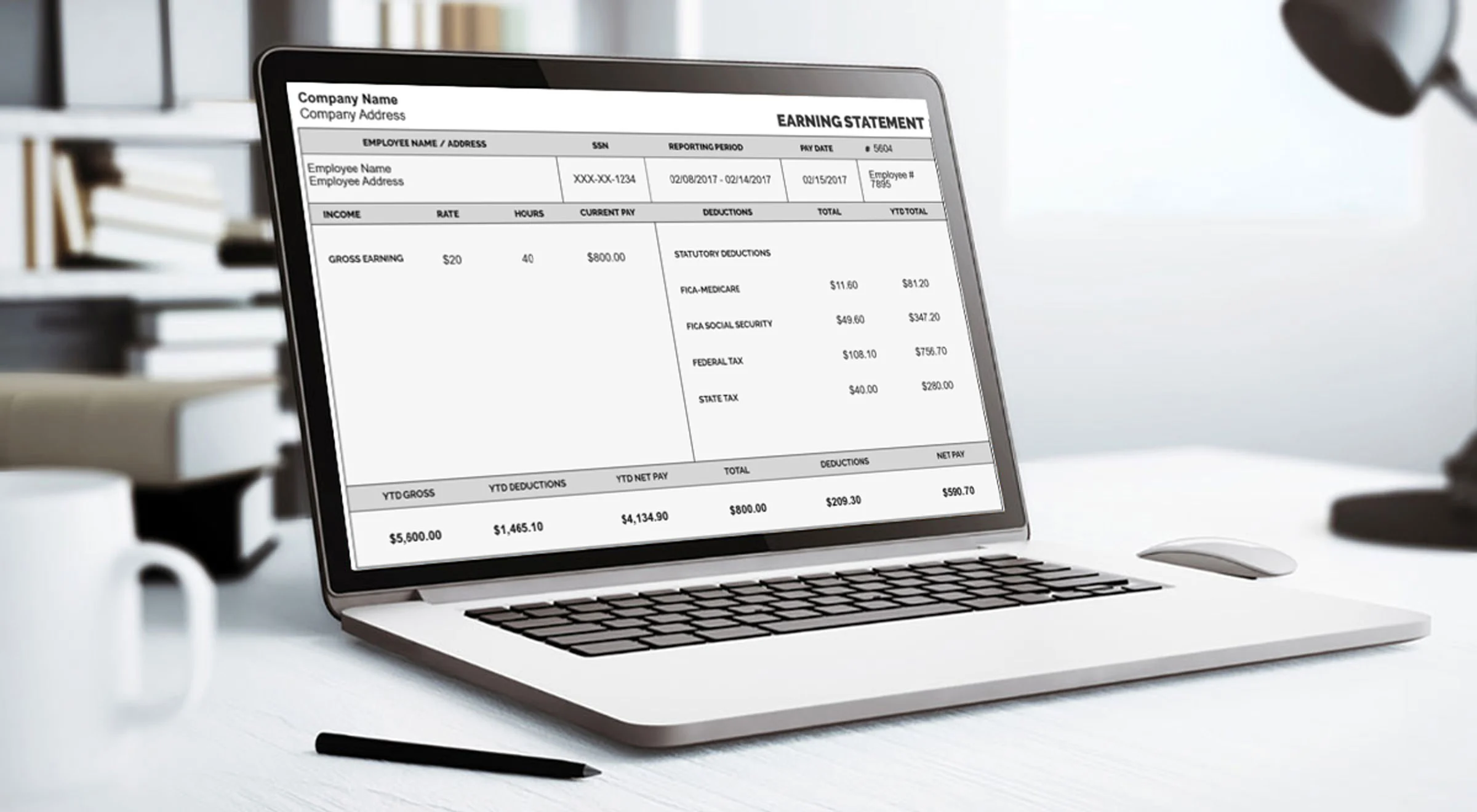
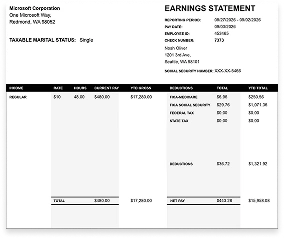
Let’s be honest, checking your pay stub shouldn’t feel like a chore. That’s exactly why Paycom made things simple with its online employee portal. Once you log in through Paycom Employee Login, you can see almost everything about your job in one place: your hours, your pay info, and, of course, your pay history.
Most people log in just to check their Paycom paystubs. Instead of asking HR for a copy every time, you can just pull it up yourself, download it, or print it in a couple of clicks. Easy, fast, and no waiting around.
In this guide, we’ll walk you through how to log in, where to find your paystub, and what to do if you run into any trouble along the way. And if you ever need a pay stub outside of Paycom, too, say for a loan application or renting an apartment, a pay stub generator can help you put one together quickly without any hassle.
What Is Paycom?
Paycom is a cloud-based human capital management (HCM) company that helps businesses manage payroll, HR, benefits, and talent management from one system.
Instead of juggling separate tools for time tracking, payroll processing, and employee records, companies use Paycom’s single-database platform to keep everything connected and up to date in real time.
Paycom Payroll Login Requirements
Here are some important requirements regarding accessing and logging to Paycom payroll employee login.
What You Need While Doing Paycom Online Employee Login?
Before you try to log in to Paycom for the first time, it helps to have a few things ready. Most Paycom com login problems people run into happen simply because one of these pieces is missing or wasn’t set up properly.
Here’s what you’ll typically need:
- An invitation or setup email from your employer- Paycom accounts aren’t self-created. Your HR or payroll department sends you an invite with instructions to activate your account.
- A username – This may be auto-generated by Paycom or created by you during setup for the Paycom employee self service login.
- A password that meets Paycom’s security requirements – Usually this means a mix of uppercase and lowercase letters, numbers, and special characters.
- Access to your registered email or phone number- Paycom often uses email or SMS verification during Paycom ESS login account setup.
- Your Employee Self-Service (ESS) code, if required- Some employers require this code, provided by HR, to verify your identity the first time you set up your account.
- A stable internet connection and an updated browser – Older browser versions can sometimes cause the login page to behave oddly.
How to Do Paycom Login Employee Portal?
Once your account is set up, logging in to Paycom is a straightforward process.
Step-by-Step Login Instructions
- Go to the Paycom login page. Your employer will typically provide a specific web address for this.
- Enter your username. You need to add the username you created or were assigned.
- Enter your password. Make sure Caps Lock is off and that you’re typing it exactly as you set it.
- Complete any two-factor or multi-factor authentication. You may need to enter a code sent to your email or phone.
- Click “Login” or “Sign In.” You should be taken directly to your employee dashboard, where you can view pay stubs.
- Log out when you’re done, especially if you’re using a shared or public computer, to keep your personal and payroll information secure.
Logging In via the Paycom Mobile App
Paycom also offers a mobile app for iOS and Android, which is useful if you want to check your paystub without being at a computer.
- Download the Paycom app from the Apple App Store or Google Play Store. Search “Paycom” and download.
- Open the app and enter your existing username and password. You’ll use the same login credentials as the web portal; there’s no separate account to create.
- Verify your identity if prompted. Just like the web version, the app may ask for a one-time code sent via email or text, particularly the first time you log in on a new device.
- Allow notifications, if you’d like them. This lets you get alerts for things like new paystubs, approved time-off requests, or important HR announcements.
- Navigate using the app’s menu to access paystubs, tax documents, schedules, and other self-service features, similar to what’s available on desktop.
How to Access Your Paystubs on Paycom
Once you’re logged in, getting to your pay stubs only takes a couple of clicks. Paycom keeps a running history of your pay records in one place, so you don’t need to ask HR for copies of past pay stubs.
- Log in to your Paycom employee portal.
- Look for the “Pay” or “Paystub” menu option on your dashboard.
- Click into the Pay section. This should bring up a summary view showing your most recent pay period at the top.
If you don’t see a Pay tab right away, try checking under a “My Documents” or “Payroll” heading instead.
Viewing Current and Past Paystubs
- Select the pay period you want to view from the list.
- Click on the specific paystub to open a detailed view of that pay period.
- Scroll through past pay periods using the date filter or dropdown menu if you need to go further back.
If you’re looking for a paystub from before you had Paycom access, that older record may not be in Paycom at all.
Downloading or Printing a Paystub
- Open the paystub you want to save or print.
- Look for a download icon or “Export as PDF” option.
- Save the PDF to your device, or select print directly from that screen.
- Store it somewhere secure if you’re keeping it for personal records, as your pay stubs contain sensitive information like a partial Social Security number.
Common Paycom Login Issues
Paycom has a self-service recovery process, so in most cases, you won’t need to contact HR just to get back into your account.
1. Forgot Password
- Go to the Paycom login page and look for a “Forgot Password” or “Forgot Username/Password” link.
- Enter your username. If you don’t remember it, you’ll need to handle that first using the steps in the next section.
- Verify your identity. Paycom will typically send a verification code to the email address.
- Create a new password. Make sure it meets Paycom’s requirements, generally a mix of uppercase and lowercase letters.
- Confirm the new password and log in. You should be redirected to your dashboard once the reset is complete.
2. Forgot Username Steps
- Click the “Forgot Username” link on the login page.
- Enter the personal information requested, which may include your email address, employee ID, or other identifying details.
- Check your email or phone for your username. Paycom will send it to the contact method on file rather than displaying it directly on screen.
- Use that username to log in, resetting your password too if needed.
If your employer requires MFA and you skip this step, you may find yourself locked out of certain features or not enabled to log in at all until it’s configured.
3. Account Locked or Login Errors
Paycom typically locks an account after several failed login attempts as a security measure.
- Confirm you’re using the correct username. It’s easy to mix this up if you have multiple work accounts.
- Wait before trying again. If you’ve entered the wrong password multiple times, the account may temporarily lock itself out.
- Contact your HR or payroll administrator if the account stays locked after a reset.
- Check for employer-side restrictions. Some companies restrict login access to specific hours, locations, or networks.
4. Paystub Not Showing Up
If you’ve logged in successfully but can’t find a paystub you’re expecting, a few things are usually to blame:
- Payroll hasn’t processed yet. Paystubs typically appear in the system once payroll has actually run, not immediately after your pay date.
- You’re looking at the wrong pay period filter. Double-check the date range or dropdown selection, since it’s easy to overlook a paystub.
- Your account was recently set up. If you’re a new employee, older pay stubs from before your Paycom access existed.
- There’s a syncing delay between HR and payroll. Occasionally, an employer’s payroll run and the ESS portal update don’t align perfectly.
If none of these explain the gap, it’s worth reaching out to your payroll department directly.
Conclusion
Getting comfortable with the Paycom employee login portal really just comes down to a few basics: knowing your login details, understanding when paystubs typically post after payday, and knowing where to click when you need to view or download one.
However, if you ever need a paystub outside of Paycom, whether you’re freelancing, switching jobs, or need something quick for a rental or loan application, a free paystub template is a solid backup so you’re never stuck without proof of income.
Disclaimer: Stubcreator is not affiliated with Paycom or its Associates. Paycom brands or logos are trademarked or registered trademarks. The article general guidance for Paycom pay stubs access. Refer to Paycom‘s official resources and consult HR for specific details.