.png)


 Chat with us now!
 Send Email!
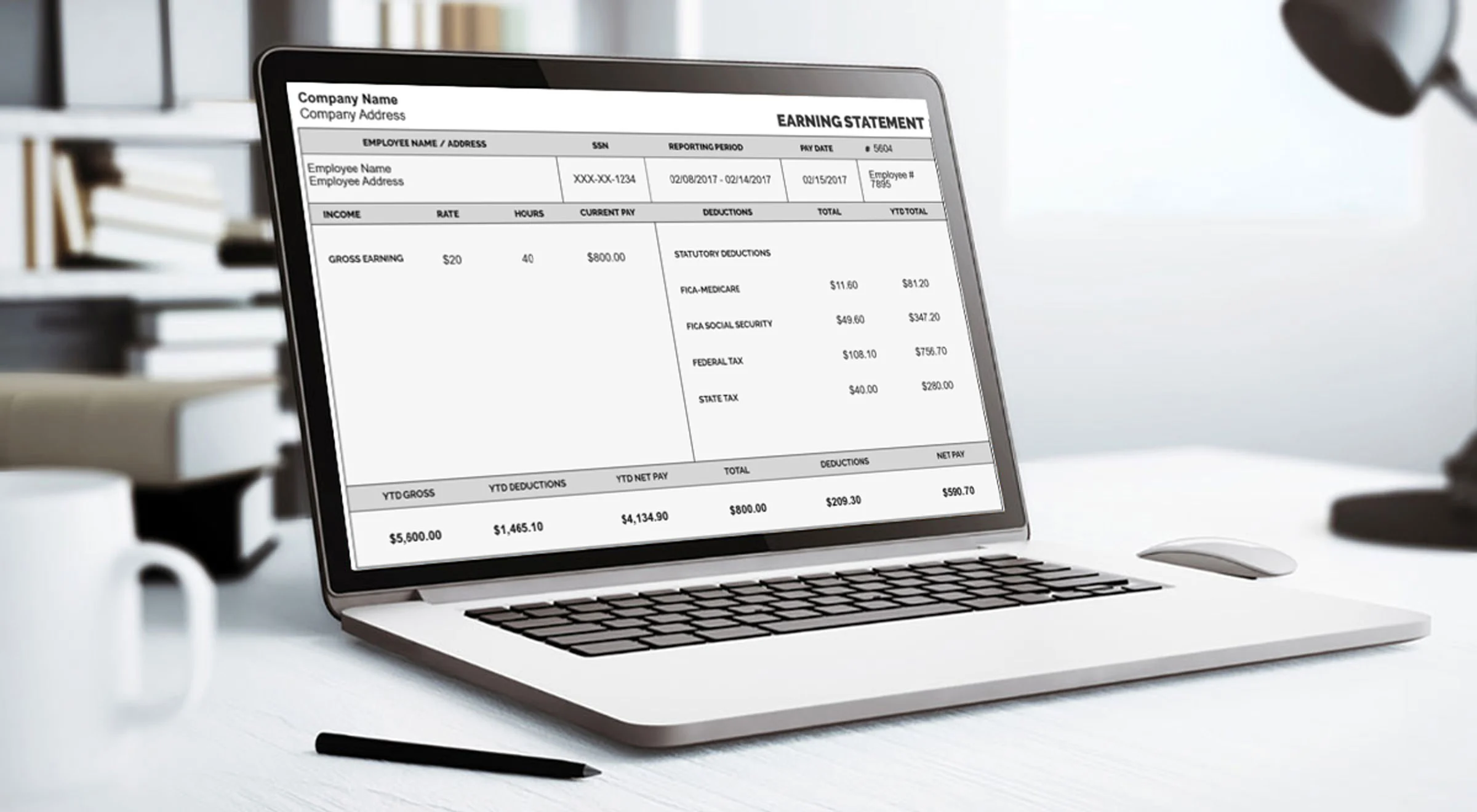

One of the most important things you can do with your paycheck stubs is manage them, whether you’re keeping track of how much money you’ve made, applying for a house loan, or even filing taxes.
As an employee working at Starbucks, getting Starbucks pay stubs is an essential task, as it helps you to keep a perfect track of your salary and deductions.
In this article, we will guide you step by step to access Starbucks pay stubs. Moreover, you can generate your own paystub by using any good and reliable paystub creator, for your own use.
What is Starbucks?
Starbucks is a global coffeehouse and the largest chain of coffeehouses in the world, founded in Seattle, Washington, in 1971. The company has thousands of stores worldwide that sell coffee, tea, espresso drinks, pastries, and other snack food items. Starbucks has hundreds of thousands of partners working in its retail stores, corporate offices, manufacturing plants, and distribution centers.
What Is a Starbucks Pay Stub?
Starbucks paycheck stub is the digital record of your payment details, which you can access through the Starbucks Partner Hub. Starbucks partner payroll portal is an online network for Starbucks employees from which you will be able to manage details regarding your payroll. Former workers could also get their final Starbucks partner pay stubs for the time they were employed.
How Can You Get a Pay Stub from Starbucks?
You can get your Starbucks pay stub online by logging in to the Starbucks Partner Hub using your Employee ID and password. Once you access the Starbucks Partner Hub, your pay stub becomes available for viewing, downloading, and printing. Below is a clear step-by-step guide based on how the Starbucks Partner App system works.
By Using the Starbucks Partner Hub
1) Access the Starbucks Partner Hub
Starbucks provides an online platform called the Partner Hub where employees can view their pay and employment information:
- Open your browser and visit the Starbucks Partner Hub website.
- Enter your user/ employee ID and password to do Starbucks pay stub login to your account.
2. Click the Pay Stubs Section
After logging in, navigate the menu to find the section where your professional pay stubs are stored:
- Look through the menu for phrases like “Pay,” “Payroll,” or “Pay Stub.”
- Select the Pay Stubs option. This will take you to a page where you can get online access to view and download your pay stubs from different pay periods.
3. Preview & Download Your Pay Stubs
Once you reach the pay stub page:
- Select the pay period you want to view. Pay stubs are usually listed by date.
- Your pay stub will appear on the screen for preview; you can check your gross earnings & final net pay.
- Download it in PDF format if you want a digital copy.
4. Save Your Pay Stub
You can store your pay stubs in two ways:
- Electronically: Get pay stubs & save the PDF file on your device and label it for easy access.
- Print a Hard Copy: If you need a physical copy, print it using a clear, high-quality printer.
5. Check for Updates
It’s helpful to check the Partner Hub regularly for Starbucks pay statements, especially if you’re monitoring your income for budgeting or financial planning.
✔️ Receive Your Pay Stub from the Store Manager
If you prefer an in-person option, Starbucks HR or your store manager can also provide your pay stub. After receiving it, review the details such as Gross pay, tax deductions, income verification, hourly rate, and specific pay period carefully. If you notice any errors in your gross pay, deductions, or net pay, contact HR or your manager for clarification.
✔️ Getting Your Starbucks Pay Stub After Quitting
If you’re a former Starbucks employee, you may still access your most recent pay stubs online as long as your Partner Hub login works. If your access has expired, contact the Starbucks HR department or your previous store manager to request copies of your pay stubs.
How To Get Starbucks W2 Online?
The belows are the steps to access W2 for Starbucks.
For Working Employees
Getting your W2 while you’re still on the schedule is the easy version of this. Here’s what to do:
- Log into the online portal the same way you normally access your Starbucks pay stub.
- Head over to “My Pay & Benefits” and then “Tax Documents”.
- Pick the right tax year and download the PDF.
- If you’d signed up for paperless delivery, it’ll usually show up here before the January 31 deadline, so no need to wait around for anything in the mail.
For Starbucks Former Employee W2
Already moved on? It’s a little more of a hunt for the Starbucks W2 former employee, but still doable:
-
- Try to check the login page in Partner Hub first with secure methods; access with previous credentials doesn’t always get cut off right away.
- If that’s a dead end, check ADP at login.adp.com or the ADP mobile solutions app, since that’s who actually handles payroll.
- Still nothing? Call the Partner Central at (888) SBUX-411 and have your partner number and last day worked ready so they can verify it’s you.
- Ask them to mail a paper copy if online access truly isn’t happening; slower, but it works.
- Keep in mind Starbucks legally has to get you that W2 by January 31, no matter when you left.
What if I can’t access my Starbucks Partner Hub?
If you cannot access Starbucks Partner Hub, click on the “Forgot Password” button on the login dashboard to change your password. If you are facing any trouble, try contacting the Partner Contact Centre at (888) SBUX-411 (7289-411) or the human resources department.
You can generally create your own pay stub by considering the pay stub template to create a new one for your reference.
Key Takeaway
Starbucks is a prominent employer, and its partners or employees may need guidance on how to access their pay information. This article has clearly laid out how you can view hours worked, work schedules, earnings, deductions, and history so that you remain organized and informed, as well as get your W-2 before tax filing. If you are an associate at Starbucks seeking your pay stubs, now you know exactly how to obtain them!
Obtaining your Starbucks pay stubs is a straightforward process. From using the Partner Hub or asking directly of your store manager, you’re able to easily gain access to them whenever needed.
Disclaimer: StubCreator is not associated with Starbucks or its Associates; all Starbucks trademarks or logos are either trademarked or registered trademarks, and should be respected as such. This article serves only as general guidance regarding accessing a Starbucks paystub – for more specifics, please contact Starbucks’ official resources and HR directly for guidance.
FAQ's
How do I see my Starbucks pay stub?
+
You can also access your Starbucks paycheck through its partner hub. Sign in to the My Partner Info (MPI) from the portal for all partners.
How can I get my pay stubs online for free?
+
For Starbucks partners, all pay stubs are provided and accessible at no charge through the Apollo/MPI portal, so you can view or download them for free without using any third-party services and tools.
What does Starbucks use for payroll?
+
The ADP system is the tool used by Starbucks to process pay and provide tax forms and digital pay statements for all partners.
How do I access my paystubs from Starbucks?
+
Sign in to the Starbucks partner portal, click on “Payroll and Timekeeping,” and choose which pay stub date you wish to see or print.
What credentials do I need for the partner portal?
+
To log in and view your pay stubs, you must have credentials from Starbucks (Global Username and Password).
How can I access my Starbucks pay stubs?
+
Log in to the Starbucks partner portal, navigate to 'Payroll and Timekeeping,' and select the pay stub period to view or print.
Can I access pay stubs on a mobile device?
+
Yes, the partner portal is mobile-friendly, allowing you to access and view pay stubs conveniently from your smartphone or tablet.
What if I encounter issues with pay stub access?
+
For technical assistance, contact the Starbucks Help Desk or your store manager to resolve any access or account-related problems.